
Mobile Self-Service Apps and the Contact Center – How to Bridge the Gap
July 18th, 2012 by Tobias GoebelUsing mobile apps for customer self-service is not new. Companies that offer self-service on more traditional channels like voice (IVR & Contact Center) and Web sites see apps as another way of deflecting expensive calls from the call center – and rightly so. A lot of repetitive, simpler tasks can be done by the customers themselves and do not require agent interaction, such as checking your account balance, paying a bill, renting a car, ordering a product, checking order status, etc.
Apps are where the customers are: they are mobile, they sit in the customer’s pocket. However, there are times when a customer is stuck while self-serving. That’s the time when they usually start searching for the companies’ phone number, switch to the phone feature of their smartphone and start making a call into the contact center. If the company is smart, their IVR allows an option to talk to an agent; nowadays, the reason for customers calling in is often a need to speak to an agent as they have already TRIED self-service. Don’t make the mistake of trying to lock a caller into your IVR with no way out!
If the company is smarter, they let the caller authenticate as a customer with the IVR, connect them to an agent that sits in front of a screen that pulls up the customer’s record automatically. CTI (Computer Telephony Integration – an antiquated term if you ask me; contact centers are more and more shifting to a pure VoIP and thus “software”- i.e. “computer”-based infrastructure) is already technology that bridges some of the gap. But there is still a disconnect. Why does a customer have to a) search for the phone number, and b) leave the app?
There are vendors out there that try to solve the problem by addressing a) only. They provide callback buttons in the app. A customer that is stuck at a certain point can hit a button that will make the contact center call them back, optimally with the app AND the customer context already known when the agent says “Hello…”.
If you ask me, that is not enough. Why do I have to leave the app? Maybe I want to continue exploring, finish the transaction, but simply have a question or need some help in using the app? Voxeo has an answer: Click-To-Talk! Bottomline: a context-sensitive, in-app phone experience.
Using Voxeo VoiceObjects, you can not only build your mobile self-service portal Web app and your IVR presence and SMS services (and Twitter-based self-service solutions) and manage them out of one integrated, enterprise-grade Application Lifecycle Suite… you can now embed a context-sensitive Click-To-Talk button right within your app.
What does context-sensitive mean? It basically means that when you click it, you will be connected to an agent that a) knows you, and b) knows what you tried to do and where you are stuck. They have the context of where you are in your (self-)service transaction. You do not leave the app – the button enables an in-app phone experience. The context-sensitivity is achieved through a CTI link between VoiceObjects, the runtime server driving the app experience, and the contact center. Voxeo has a lot of experience integrating into various contact center suites. The Click-To-Talk feature is realized through Phono, Voxeo’s softphone solution that can sit in any Web browser – or mobile device, allowing phone-to-SIP or phone-to-PSTN connections.
The following screenshot shows how a mobile self-service app with a Click-To-Talk button can look like:
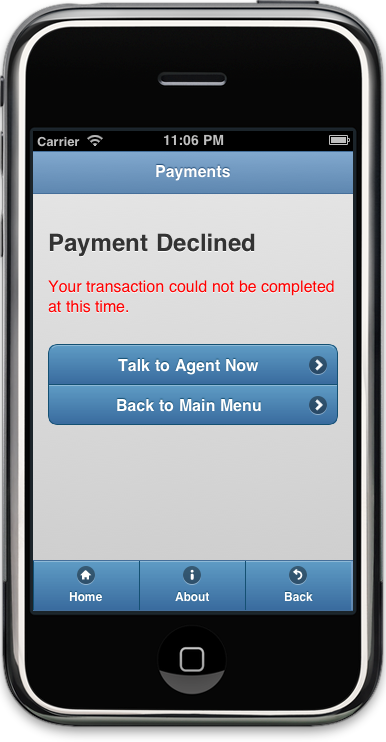
As you can see, you see …nothing. Just a button that says “Talk to Agent Now”. As a matter of fact, if your customer hits that button, an actual phone connection will be established into your call center. The appearance of the app will not change – the transaction can still be completed, maybe with help from the agent.
The biggest challenge with this approach is call volume – how can you provide near-zero wait times to not disrupt the experience? The key lies in knowing your customer and taking context into account when providing this magic button. Using in-app authentication and subsequent CRM integration, you can find out if the customer is eligible for this premium service. Using the CTI link, you can pre-determine agent availability. If you deem the customer eligible and agents are available, turn the button into a Click-To-Talk experience. Otherwise, either hide the button altogether, or turn it into a regular Callback feature, potentially asking the user for their preferred callback phone number. That way, you can ensure optimal experience when you’re ready for it. By only offering the button further down the self-service transaction dialog tree, you additionally prevent misuse. Those users that haven’t authenticated yet or haven’t even TRIED to serve themselves will not see that button. Using Voxeo’s runtime VoiceObjects application server, you can control when and how the magic button is used.
Interested? Get in touch! I would also love to hear your comments/feedback/questions. You can add them below.



 RSS FEED

July 24th, 2012 at 7:03 pm
You are right Tobias. Plopping in a callback button is not enough. Maybe that’s not how the customer wants to communicate after all. There are other ways to “bridge the gap” between the contact center and the mobile customer. For example, what we call in-App chat and in-App private messaging. These are modalities that allow real time or close to real time communication without having to exit the SmartPhone application to have a separate dialog.
You bring up a good point also in terms of the “placement” of concierge-type buttons. That’s kind of the equivalent of “hidding the zero” in an IVR app or at least not advertising it on the first pass of the dialog turn. This can better be controlled in a spatial domain as you suggest.
August 3rd, 2012 at 7:08 pm
Thank you Ed. In-app chat and PM is certainly another great means to get in touch with an agent, and these are silent channels, i.e. usable when you can’t speak. I might just find speaking a tad more convenient than typing on the tiny screens. After 2 years of iPhone, I STILL can’t type properly without correcting almost every word…