2 How to Structure the Dialog Flow
This chapter describes which objects can be used to structure the dialog flow in various ways.
What is a Dialog Flow?
A dialog flow is basically a sequence of objects. The types of objects, their parameters, and the order in which they are arranged define the path the caller follows during a call. Good dialog design – including tasks such as prompt design and advanced event handling – determines a successful application.
VoiceObjects provides object types and parameters that help designers to structure the dialog flow:
· Dialog flows can be split into subdialogs by the use of Module objects, Menu objects, or Sequence objects (for more details on these elements refer to the respective chapters in the Object Reference).
· Logic elements such as If, Case, or Loop objects allow the dynamic switching between different branches within a dialog flow (for more details on these elements refer to the respective chapters in the Object Reference).
· Navigation commands allow callers to easily switch between parts of an application (for more details refer to Navigation in the Object Reference).
Using Module Objects in a Dialog Flow
Applications may get very complex and consist of a large number of single objects. Therefore designers split applications into logical units. Module objects and Sequence objects (see below) can be used to group individual objects into subdialogs, which in turn can be combined and recombined into larger applications.
Within Module objects global settings can be specified for event handling (e.g. No Match, No Input, Help, etc.), dialog navigation and tuning that are inherited by all underlying objects. This inheritance means that designers need to define given dialog behavior only once, to have it applied throughout the entire application.
The Prime Insurance application provided by VoiceObjects, for example, includes the sub-applications Health Insurance, Life Insurance, Car Insurance, Claim Check, and Claim Report, which are developed as separate Module objects. The Prime Insurance Portal – again a Module object – consolidates these sub-applications, specifying global settings for the entire application.
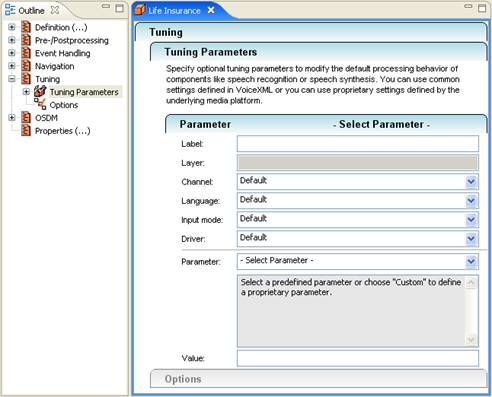
Structuring dialogs into Module objects helps designers to keep a clear dialog structure and – due to the reusability of complete Module objects – to rapidly develop new applications.
i8Note: When structuring the dialog flow it should also be taken into consideration that in the case of Module objects additional information is written into Infostore, which does not happen for other objects like Sequence objects.
For detailed information refer to the Module object in the Object Reference.
For detailed information on the settings for event handling, navigation, and tuning see the respective chapters in the Object Reference.
Using Sequence Objects in a Dialog Flow
Sequence objects are used within an application to arrange objects to be processed sequentially. They may contain objects of any type that can be placed into the dialog flow.
Different from Module and Menu objects, no global settings (event handling, navigation and tuning) can be specified within Sequence objects.
Sequence objects can be nested within other Sequence objects. Complex functionality can be split into separate reusable Sequence objects by using them iteratively for specific parts of an application. For example, a main sequence might represent the complete order process of a shop. Within this sequence the dialog steps for placing the order (review the shopping basket, get the address data, get payment information, and finally confirm the order) can be split into four subsequences. Each sequence itself can again be split into multiple steps. Finally, a complex application is divided into small manageable and reusable pieces, each representing a small part of the complete application.
i8 Note: When nesting Sequence objects within other Sequence objects, care should be taken not to create infinite loops.
For detailed information refer to the Sequence object in the Object Reference.
Using Menu Objects in a Dialog Flow
Menu objects are very helpful in combination with Module objects, to structure the dialog flow. They are often used as a top-level routing point in voice portal applications.
In the Prime Insurance application all sub-applications are linked into a Menu object named Main Menu, which is referenced in the object sequence of the Root Module object. Typically a Menu object is used to provide the caller with a choice of options how to proceed in the dialog flow.
Within Menu objects global settings can be specified for event handling (e.g. No Match, No Input, Help, etc.), dialog navigation and tuning that are inherited by all subordinate objects. This inheritance allows designers to define dialog behavior once and have it applied throughout the entire application.
For detailed information refer to the Menu object in the Object Reference.
Using Loop Objects in a Dialog Flow
The Loop object is typically used to repeatedly process a sequence of objects as long as the defined loop condition is true. Depending on the preferences in the Loop object the loop condition is evaluated before (pre-checked Loop object) or after (post-checked Loop object) processing the object sequence.
For detailed information refer to the Loop object in the Object Reference.
Conditional Processing
Depending on parameters such as user input, user profile, external data, date, time, etc., parts of a dialog flow may or may not be processed.
If and Case objects can be used to make parts of a dialog flow dependent on certain conditions:
· An If object is used to split a dialog flow into two subtrees depending on a condition evaluated at call time.
· A Case object is used to split the dialog flow into multiple subtrees depending on one or more conditions evaluated at call time.
In addition, the preconditions and the disable option can be used to express certain dialog conditions and influence dialog behavior.
While If and Case objects are part of the dialog flow, preconditions and the disable option are part of an object itself.
Precondition
A precondition is a condition that is evaluated at call time before processing an object. The object is only processed if the condition evaluates to true. A precondition can be defined with an Expression, a Script, a Variable, or a Collection object. For more information about preconditions see Pre- and Postprocessing in the Object Reference.
In the Dialog Designer, objects with a precondition are indicated with a Precondition icon  .
Disable option
Objects that are disabled will not be processed during a call. The disable option can be useful during the development or test phase of a project to disable single objects or complete parts of the application. Disabling an object means that all references of this object are disabled within the dialog flow.
For information on how to disable objects see Enable or Disable Objects in Chapter 7 – Basic Commands in the Desktop for Eclipse Guide.
In the Dialog Designer of Desktop for Eclipse, disabled objects are grayed out and written in italics. In Desktop for Web they are indicated by a Disable icon 
i8 Note: The disable option cannot be modified at call time. When an object is disabled, neither its pre- nor its postprocessing is processed.