12 How to Build Mobile Web Applications
This chapter provides best practices for the design and development of applications for the Web channel using VoiceObjects. It includes an introduction to the basic concepts of mobile Web applications and the challenges of this channel as one of the four available phone channels voice, video, text, and Web. In addition, it describes basic principles of languages such as HTML and CSS, knowledge that is required to be able to build compelling applications for mobile Web browsers.
For a general introduction to phone channels and how they are supported by VoiceObjects, refer to Chapter 10 – How to Support Multiple Phone Channels in this Design Guide.
Concepts and Challenges of Mobile Web
The Web channel is different in various respects from the other three phone channels voice, video, and text:
· Underlying platform
In the Web channel, the platform/browser required to interpret the markup code that VoiceObjects Server renders at call time sits on the client side, so it isn’t known to the developer or administrator when building a Web application.
In the voice and video channel, the platform interprets VoiceXML and sits in the network of the hosting provider or customer/operator; in the text channel, the platform interprets a proprietary USSD markup language and sits in the network of the mobile operator. So in the case of text, voice and video, only one platform, which is known to the developer, is used to work in conjunction with VoiceObjects Server.
· End-user experience and expectations
While there is little end-user experience with applications in the text and video channel in today’s market and only moderate experience with voice applications, Web literacy is significantly higher. Internet users are accustomed to surfing the Web on full-screen browsers, less so on mobile browsers, but expectations are probably similar as far as content, usability, and accessibility are concerned.
· Presentation capabilities
In the voice channel, the choice of a suitable persona and audio design is essential in terms of caller acceptance. In the video channel, graphic and video design comes on top of persona and audio design. The text channel has no layout capabilities whatsoever, so conciseness, clear prompting and dialog flow is essential here (as in the other channels), but nothing else.
The Web channel is based on (X)HTML and CSS (cascading style sheets), which are languages built to both structure the content and define the (usually visual) presentation. Together, they provide rich layout capabilities such as font color, size, style, images (static, animated, background), tables, etc.
A number of these issues are in fact faced by any designer creating Web sites for the Internet. Pages must be developed in such a way that they look the same way on any kind of Web browser, or at least are usable on any kind of browser. The challenge with this in the mobile Web channel lies in the capabilities of mobile browsers. The devices are usually no rich clients with a lot of memory and CPU power; instead mobile browsers are thin-client software, with several restrictions as to the covered functionality and performance. Due to this, support for CSS and HTML is restricted. This is most likely only a temporary restriction, though, as devices are getting more and more powerful, catching up with stationary clients in the mid to long term. The screen size, on the other hand, will assumingly not substantially change in the near to mid term (in the long term, screen content might be projected by rather small devices), so that the challenge will remain to build applications that are user-friendly and accessible on small screens.
All four phone channels have one thing in common, which is the style of interaction between the system and the caller. In each of the four channels, interaction is based on turn-taking and interactive dialogs. The usual interaction pattern is such that the system asks a question and the caller responds. This can be via speech input and output, or visual input and output. For the mobile Web channel, this means that the pages that the server generates for a call are conceptually different from Web sites known from every-day surfing on desktop PCs. Each page only presents a small piece of information relevant to the task the caller wants to accomplish. Mobile Web applications are therefore more task-oriented and more directed and interactive in nature. This should be kept in mind when designing applications for the mobile Web channel. Design of mobile Web applications is different from design of standard Web sites.
Eventually, the similarity of interactive turn-taking among all four phone channels is the reason why you can build multi-channel applications out of the same service definition within the same service creation environment. This guide focuses on pure mobile Web applications, though, not taking into account implementation details for multi-channel applications.
The next section will introduce some basic concepts of HTML and CSS, the most important languages in the context of the World Wide Web, and will demonstrate how these can be exploited when building mobile Web applications with VoiceObjects.
Introduction to HTML and CSS
The Web channel requires some basic knowledge of the underlying technologies, such as HTML, CSS, and to some extent also JavaScript, in order to be able to build compelling Web applications. This is different from the voice, video and text channel, where the technical foundation is abstracted by VoiceObjects, so that developers only need to parameterize objects and put them together to a dialog flow, including back-end access, to achieve full-fledged applications.
i8 Note: This section is not meant as a tutorial on HTML, CSS, or JavaScript, but instead will shortly describe the general functionality and then focus on specific elements that are important in the context of VoiceObjects-based mobile Web applications. Find specifications of HTML and CSS at the Web site of the WWW consortium: www.w3c.org. A popular guide to HTML, CSS, and JavaScript in German can be found here: http://de.selfhtml.org/.
HTML
The HyperText Markup Language was built as a markup language to define hypertext, a text form that overcomes some restrictions of written text by introducing the concept of hyperlinks to connect related information. HTML was the reason for the success of the World Wide Web, and as such the Internet as a whole, as it allowed anyone with a text editor and basic knowledge of the language to define content that is accessible for everyone connected to the Internet. It covers text as well as multimedia content and requires browsers to display the pages, which exist for a multitude of operating systems.
HTML was originally based on SGML, a complex standard for markup languages, but was then modified to be compliant with XML, today’s de-facto standard for content markup of any kind. This special form of HTML is called XHTML (Extensible HTML) and is the basis for the mobile Web channel of VoiceObjects.
Any XML document is a plain text file, enriched with elements that structure the content and add some meta information to it. These elements can be nested within each other, and are represented by so-called tags; every element requires an opening tag and a closing tag, wrapping the text that this element defines. Tags are defined using the symbols “<” and “>”, plus “/” for closing tags.
HTML documents consist of a header and a body, represented by the <head> and <body> tags, respectively. While the header contains some general information on the document itself, plus various processing instructions for the browser, the body holds the actual content, i.e. text, hyperlinks, tables, images, etc.
In VoiceObjects, the developer does not have to work with these tags at all; instead they can simply define the text to show in Output objects. The resulting applications typically lack style and layout, though, which is why the use of certain HTML tags is recommended for production-level Web applications.
To mark some text with an element, wrap the text with the corresponding opening and closing tag. Some tags allow the use of attributes, which are included in the opening tag and follow the syntax of name=”value”.
A range of elements is used to define font styles for text. The following table lists those that are most relevant with VoiceObjects:
|
Element |
Description |
|
<b> |
Prints the text bold. |
|
<i> |
Prints the text in italics. |
|
<u> |
Underlines the text. |
|
<center> |
Centers the text in the display. |
|
<h1>, <h2>, … |
Applies a heading layout to the text. This triggers browser-specific layout such as increased font size, centered alignment, greater margin to the following text, etc. |
|
<font size=”…”> |
Applies given font size to the text. The size can be a numerical value (e.g. 12), or one of xx-small, x-small, small, medium, large, x-large, xx-large. |
|
<font color=”…”> |
Shows text in given color. This can be the name of a color (e.g. red, blue, black), or a hexadecimal representation of the red, green, and blue parts of a color (e.g. #0088aa). |
|
<img src=”…”> |
Embeds an image in the display using the given URL. The src attribute points to the image file, which usually comes in GIF or JPG format. |
As an example, consider the following content of an Output object:
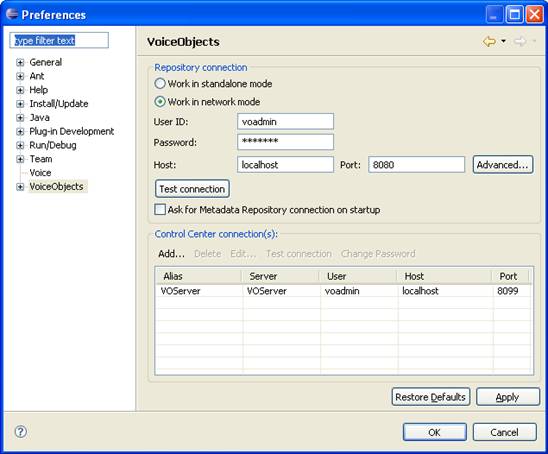
Here, the actual text to display is “Expiry Date | (e.g. type in 0309 for March 2009):”. The pipe symbol (“|”) is a special symbol that instructs VoiceObjects Server to render a <br/> element, which will make the browser add a line break to the output. The use of this symbol is encouraged when developing applications for the text and the Web channel at the same time, since the same Output item can then be used for both channels. The manual line break in the Output object has no effect and is only used to visualize the line break to the developer. The tags <center> and <i> are used to center the text and print it in italics, respectively.
It is usually best practice to separate presentation from content, i.e. to not put instructions on how to visualize content into the document itself, but instead to outsource this using cascading style sheets. Style information can generally also be embedded into an HTML document, but with VoiceObjects Web applications, external files must be used for style sheet instructions. So in general, the use of CSS is preferred over the use of elements like <b> or <i>.
CSS
Cascading style sheets (CSS) is a style sheet language used to describe the presentation of a document written in a markup language. In Web applications, CSS is used together with HTML to instruct the browser how to show the content on the screen. CSS definitions can either make statements on the layout of the whole body of an HTML document, of specific elements (such as <h1>, <i>, etc.), or of specific individual elements (such as one specific occurrence of <h1>).
By default, a VoiceObjects Web application uses a default CSS file, depending on the driver selected. This file comes with default styles for prototype-level applications. Find the file in the Resources\System\StyleSheet folder of your VoiceObjects installation. To define a custom CSS file for your application, use the tuning parameter Presentation – Style Sheet URL. Define this in the root Module object, in order to have a consistent look & feel throughout the application, and/or use individualized object- or sub module-specific CSS files.
CSS files are plain text files that must adhere to a special syntax, which is proprietary to the CSS language. In general, the format is as such:
A style sheet consists of a list of rules. Each rule consists of one or more selectors and a declaration block. A declaration block consists of a list of semicolon-terminated declarations in curly brackets. Each declaration itself consists of a property, a colon (“:”), a value, then a semi-colon (“;”).
As an example, consider you want to set the font size for the <h1> tag to large and color to green. The corresponding CSS code would say:
h1 {
font-size:large;
color:green;
}
The following table lists the most common CSS properties for font layout, margins, colors and background images:
|
Property |
Description |
Values |
|
font-family |
Font types. Using a comma-separated list of several types, the browser can pick one that it supports. |
Generic: Other: |
|
font-style |
Font style. Mainly used to achieve italics. |
italic, oblique, normal |
|
font-size |
Font size. Can be a numerical value or one of seven predefined strings. |
xx-small, x-small, small, medium, large, x-large, xx-large |
|
font-weight |
Font weight. |
bold, bolder, lighter, 100, 200, 300, 400, 500, 600, 700, 800, 900, normal |
|
color |
Shows text in a specific color. This can be the name of a color (e.g. red, blue, black), or a hexadecimal representation of the red, green, and blue parts of a color (e.g. #0088aa). Generally, hexadecimal values are better supported by mobile browsers than color names. |
black, gray, maroon, red, green, lime, olive, yellow, navy, blue, purple, fuchsia, teal, aqua, silver, white; or #RRGGBB |
|
line-height |
Specifies the height of a text line. |
Numbers or Percentage |
|
text-align |
Horizontal alignment. |
left, center, right, justify |
|
margin |
Outer top, bottom, left, and right margin |
Numbers |
|
background-color |
Background color. |
See color |
|
background-image |
URL to a background image. |
URL |
|
height |
Height of an element, e.g. submit button. |
Numbers |
|
width |
Width of an element, e.g. submit button. |
Numbers |
To set a style for an individual element, the class and/or id attribute of the element must be defined, so that the CSS definition can refer to the element. The syntax for defining class names in addition to element names requires using a dot “.” to separate the element from the class name.
For the elements automatically created by VoiceObjects Server, the following class names are used:
|
Element + Class |
Used for |
|
div.voOutput |
Prompt in Output object |
|
a.voMenuItem |
Menu items in Menu object |
|
a.voInputItem |
Items in Input object, if tuning parameter Presentation – Input is set to menu |
|
a.voConfirmOutput |
Confirm output in Confirmation object |
|
a.voCorrectionItem |
Correction items in Confirmation object |
|
a.voListNavigationItem |
Navigation commands in List object |
|
a.voListSelectionItem |
Selection commands in List object |
|
a.voNavigationItem |
Single custom and standard navigation command |
|
div.voNavigation |
Entire block of navigation commands |
|
input.voSubmit |
Proceed button |
|
div.voSubmit |
Proceed button; use this to be able to center the button |
|
input.voText |
Text input field of Input object, if tuning parameter Presentation – Input is set to text |
|
input.voPassword |
Password input field of Input object, if tuning parameter Presentation – Input is set to password |
|
input.voRadio |
Radio buttons of Input object, if tuning parameter Presentation – Input is set to radio |
|
option.voOption |
Options (drop-down list) of Input object, if tuning parameter Presentation – Input is set to list |
|
img.voTopLogo |
Top logo image, defined through tuning parameter Presentation – Top Logo URL |
|
img.voBottomLogo |
Bottom logo image, defined through tuning parameter Presentation – Bottom Logo URL |
|
h6.voTitle |
Phone Simulator – Web only. The <title> tag is converted into <h6 class=”voTitle”> as the first child element of <body>, so that it is shown within the phone screen. |
To define a style for the <input class=”voSubmit”> element, which is the one denoting the Proceed button used mainly in Output and Input objects to proceed to the next page, the CSS could say the following:
input.voSubmit {
font-family:Verdana,Helvetica;
color:white;
}
This means that the button label of all Proceed buttons in the VoiceObjects application using this style definition would have white color and use either Verdana or Helvetica as the font, depending on the availability of the browser.
In addition to class, the server adds the id attribute to all elements relevant for layout. This attribute consists of the type and name of the object that this page was rendered for, with the syntax type_name. Type and name are converted to lower-case and all special characters such as blanks, underscores or hyphens are removed from the name. Using this attribute, the style sheet can define formatting that only applies to specific objects of an application. This is done using the “#” symbol to separate element and id name for one CSS declaration.
To be able to define the above style for one specific Proceed button, e.g. the button that is shown in the Output object Present Fee (<input class=”voSubmit” id=”output_presentfee”>), the CSS code could say the following:
input#output_presentfee {
font-family:Verdana,Helvetica;
color:white;
}
i8 Note: You can either reference the id (using “#”), or the class (using “.”), but not both at the same time.
Template Engine and Web Drivers
The Web channel requires specific markup to be rendered by VoiceObjects Server. Internally, the rendering is based on a template engine, which works on the basis of predefined markup templates for each dialog object. Usually, these templates do not need to be modified, as they are optimized for both channels. In certain cases, though, it might become necessary to adjust a template, based on a requirement for a particular application. If you think that the standard rendering of VoiceObjects Server is not sufficient for a particular application, please contact VoiceObjects Technical Support.
The following drivers exist for the Web channel:
|
Web driver |
Channel Engine |
Applies to |
|
Mobile Web XHTML 1.0 |
<xhtmlweb> |
Mobile browsers with limited support for HTML and/or CSS. |
|
Rich Web Client XHTML 1.0 |
<richxhtmlweb> |
Mobile browsers with full HTML and CSS support. These browsers usually also support JavaScript. |
|
Apple iPhone Web XHTML 1.0 |
<iphonexhtmlweb> |
Apple’s Safari browser deployed on iPhone and iPod Touch. This browser fully supports HTML, CSS, and JavaScript. |
The templates for these drivers are optimized for best performance and look & feel on the respective devices. VoiceObjects Server detects the user-agent information of a browser through the HTTP header. If the option Respect user-agent in Web channel is selected in the Service object, the server tries to map that user-agent to one of the three available drivers, overriding the service setting. It uses the file WEB-INF\config\UserAgents.xml from the VoiceObjects installation to do this. If it cannot find a mapping driver, the driver from the service is taken.
Best Practices of Mobile Web Development
This chapter deals with best practices for mobile Web application development using VoiceObjects. It presents a list of ideas and implementation suggestions for the most commonly used concepts in VoiceObjects Web applications. Before reading this chapter, make sure you have read the information presented in the section Introduction to HTML and CSS.
@8 Tip: The World Wide Web Consortium (W3C) has published a document on Mobile Web Best Practices at http://www.w3.org/TR/mobile-bp/. Consult this document to get further information on the design aspects of applications for mobile Web browsers. In addition, refer to the Web Accessibility Initiative at http://www.w3.org/WAI/ for strategies, guidelines, and resources to make the Web more accessible.
Define titles
Titles in HTML are usually printed as the window title under Microsoft Windows browsers; on mobile devices, the layout of titles can vary drastically, as they have to be embedded somewhere in the display on the small screen.
The title is defined through the title output in a Module object. It is defined in a module, as it is usually the same throughout the entire application, e.g. a brand name.
If the title is not defined, some browsers display the URL of the current page as the title. To avoid this, make sure to define a valid title, or use the entity “ ” to denote a blank.
Headlines as landmarks
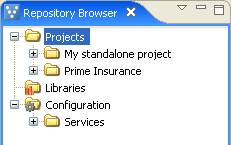
In addition to titles, which usually remain the same throughout the application, headlines can be used as landmarks per page to inform the caller about the current position within the dialog. To achieve this, embed an element like <h2> (HTML knows <h1>…<h6>) into each output. Using CSS, a style for this element can be defined, so that it fits to the overall layout of the application.
As an example, see the following screenshot of the Welcome Message definition of a Menu object:

The CSS could be defined as follows:
h6 {
color: #fff; font-weight: bold; font-size: 12;
background-color: #4682b4; text-align: center
}
The output would be with a blue background, white font color, and centered alignment:
Use of images
Images can easily brush up the appearance, the look & feel of a Web application, which can increase customer satisfaction and usability of the service.
Images as part of an (embedded or autonomous) Output object can be defined by using the <img src=”XXX” alt=”YYY”> element at the position where it should occur in the output. “XXX” is the relative or absolute URL of the image file. The location is relative to the base URL of your application, e.g. http://myserver.com:8099/VoiceObjects/. Use absolute URLs if the images are located on a different machine. “YYY” is an alternative text, which is shown if the browser cannot or should not display images. Note that browsers typically allow to turn the display of images off, to save screen space and bandwidth when downloading. Alternative texts should therefore always be defined and hold text that describes the content of the image, so that the application is usable also if image display is switched off by the caller.
In addition to the src and alt attributes, use width and height to restrict the corresponding properties of the image, if the resource itself is larger than desired.
Using the tuning parameters Presentation – Top Logo URL and Presentation – Bottom Logo URL, URLs for images to be used as top and bottom logos can be configured. Use these parameters in the root Module object, to have a consistent look & feel throughout the application. And if applicable, modify the layout for individual objects. A typical example would be a company logo at the bottom for branding purposes.
Examples
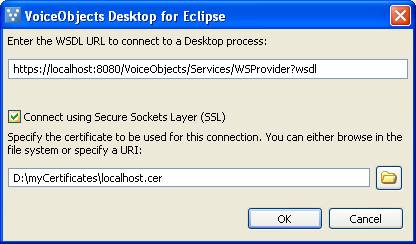
As an example, consider the following output definition of an Output object telling the caller that something is still under construction:

The result of this Output object could look like the following screenshot; note that the title and bottom logo are inherited from the parent Module object:
Images can also be used to represent Menu items, instead of plain text:
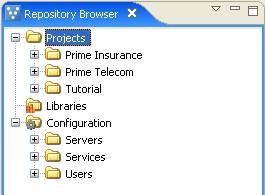
As an alternative to the textual representation of standard navigation commands, list navigation commands or hyperlinks like backward and forward, arrow icons may be used:
The above screenshots also show an example of a company logo (PrimeTelecom) as a bottom logo defined through the Presentation – Bottom Logo URL tuning parameter.
Apply special layout to data
The sections Headlines as landmarks and Use of images have shown that any kind of markup can be included in (embedded) Output objects. HTML has two special elements, <div> and <span>, which do not have any effect on the layout by themselves, but can be used to associate a special style to particular content. The difference between the two is that <div> denotes a paragraph and adds a corresponding break to the display, which <span> does not. By using the class attribute on these elements, any kind of special style can be defined for your application, for instance a style that displays phone numbers in a special, consistent way.
Single-slot versus multi-slot inputs
Input in the Web channel is done through several different HTML elements. In VoiceObjects, the tuning parameter Presentation – Input allows you to define how to display a slot from an Input object:
· Text
The slot is shown as an input field, which allows free entry of text. In addition, a submit button is shown.
· Password
The slot is shown as an input field in password mode, which means that the characters the caller enters are replaced by the browser with a special symbol (“*”), while typing. In addition, a submit button is shown.
· Menu
The slot is shown as a “menu” of hyperlinks. By activating such a hyperlink the caller selects the item, the slot value of which then gets assigned to the variable in the result handling definition of the Input object. No submit button is required.
· Radio
The slot is shown as a radio button group. Each utterance from the TTG grammar is shown as a single radio button. In addition, a submit button is shown.
· List
The slot is shown as a drop-down list. The caller can select one of the entries. In addition, a submit button is shown.
The Web channel allows the definition of single-slot as well as multi-slot Input objects. This is different from the text channel, which, for technical reasons, can only ask for one piece of information at a time and thus only supports single-slot Input objects. Using multi-slot inputs means displaying more than one input field, radio button group or drop-down list on the same page. This is useful in order to reduce the number of clicks and dialog steps needed to provide the required information to an application.
Generally speaking, whenever several items of related information are requested use a multi-slot Input object. In other cases single-slot inputs might be preferred depending on the context and design decisions.
When more than one slot is displayed on a page the developer needs to be able to specify the layout of these slots, i.e. whether to show a slot as an input field or a drop-down list and which label to print in front of it. Use the tuning parameters Presentation – Input and Presentation – Slot Label to define per slot how the Input object is to be presented and which label to show, respectively. Find a description in Input in the Object Reference.
As an example, consider an Input object asking the caller about their age and gender to calculate the fee for life insurance in an insurance portal. The object definition for grammar and result handling could look as follows:

In this example, the two alternatives male and female are defined for the slot Gender, and female is defined as pre-selected through the @SELECT@ marker. This is done because female is considered to be more likely in the context of this application, which will save one click for the caller. For the slot Age, the question mark “?” is defined as the grammar, so that Age is to be entered in an input field.
If no value for the Presentation – Input parameter is defined the server will auto-detect the best presentation style for each slot, based on the number of utterances pertaining to that slot. For Gender, with two utterances, this would be radio and for Age, with “?”, it would be text.
i8 Note: In a single-slot Input object, the default presentation style for two utterances would be menu, which means the utterances are displayed using clickable hyperlinks. For a multi-slot Input object, this does not make sense, as clicking the hyperlink for one slot would directly lead out of the page so that selections for the other slots could not be made. Therefore the server chooses radio as the default style for slots with an utterance count between 1 and 5.
With a value “Gender:|(Gender),Age: (Age)” for Presentation – Slot Label, the output could be like this:

Note that due to the pipe symbol “|” in the label for Gender a line break was added; this could also be achieved by defining “<br/>” directly. For the Age slot the line break was deliberately omitted since the text box should appear on the same line. The blank is important to not attach the field directly to the label. Note also that the definition of
input.voText { width:40 }
takes care of reducing the input field to a reasonable size. In addition, the parameter Presentation – Input Maximum Length should be set to “2” so that the caller cannot enter more than two digits into this field.
i8 Note: While the width is layout-related information the maximum length is content-related. Therefore the one setting must be made in the style sheet and the other one in the application through a parameter.
Use of autonomous Output objects
Output objects that occur autonomously in the dialog flow will be rendered as individual pages. This is the case in all four channels. While in voice and video this is not relevant as it is transparent to the caller (the hear & feel is the same, no matter how many VoiceXML documents are rendered), the text and Web channels show a single page for this, with an option to proceed the dialog. In the Web channel this is a button with the label defined in the tuning parameter Presentation – Proceed Label (the default value is the language-independent string “>>”).
Since an extra page means an extra click for the caller and thus delays in the interaction it is usually recommended not to use autonomous Output objects, but to include the output in the following object, e.g. Menu or Input, instead. On the other hand, information that is not related to the following object might as well be presented using a separate Output object.
Exit applications and handle timeouts
In the voice and video channel, VoiceObjects Server is notified if the caller hangs up, which allows to clean the session and thus free ports and resources. In the text and Web channel, “hanging up” is not a concept; instead, callers simply leave the browser or do not respond anymore. For technical reasons, the server cannot be notified, which is why all text and Web sessions usually run into the dialog timeout. This puts unnecessary load on the server. To avoid this effect, make sure to always end your applications using Exit objects. When the page for the Exit object is rendered the server terminates the session immediately and gracefully. Note that this is probably not possible in menu-based applications where callers always return to the main menu, so there is no clear exit point in the application. For more directed dialogs, though, the Exit object is the clean way to end a call.
To keep the load on the server low, the dialog timeout for Web sessions should generally be kept low, maybe in the range of 40-60 seconds. Since this might not be enough for certain dialog steps, e.g. when having to enter an address, use the Increased Dialog Timeout option in the Input, Menu, Confirmation, and List objects. This can temporarily increase the currently applied dialog timeout for individual objects, giving callers more time to respond where needed.
Exploit user-agent information
As different browsers and devices offer different display capabilities sometimes the need arises to provide device-dependent styles for an application. Using the Driver layer on the tuning parameter Presentation – Style Sheet URL, more than one CSS file can be specified, depending on the selected Web driver.
To achieve an even more fine-grained differentiation, the user-agent information can be exploited during the dialog. Every device and/or browser has a unique ID called user-agent. This is delivered in the HTTP request coming from the client. VoiceObjects Server reads this information out from the initial service request and makes it available through the Expression function SESSION with the argument UA. Use the Layer field instead of Driver to define several different CSS URLs, depending on the user-agent. For a list of user-agents, refer to the file WEB-INF\config\UserAgents.xml in your VoiceObjects installation. Note that this is only an excerpt, as the list of mobile devices grows rapidly.