Appendix A – Project Documentation
The project documentation functionality within VoiceObjects Desktop is used to document the overall structure as well as specific details of your project e.g. to present it to customers, for internal meetings and so on.
Introducing Project Documentation
Using the project documentation functionality you can create a PDF file that either shows the dialog flow similar to its display in the Dialog Designer, a table overview of all or a selected subset of objects, or both.
The PDF document can be created for the entire project version or starting from a particular object. When creating the project documentation for the entire project version, the system loops through all existing Module objects and creates the corresponding documentation. When starting from a particular object the project documentation only shows objects that are referenced within the corresponding subtree of the application.
Creating a Project Documentation for the Life Insurance Application
In the documentation folder of your VoiceObjects installation you can find an example documentation for the Life Insurance application (LifeInsuranceProjectDocumentationEN.pdf).
To create this documentation, which includes the dialog flow and the object overview for the Life Insurance application do the following:
1. Open the Tutorial project.
2. On the menu bar, select Tools and then Project Documentation.
The Project Documentation window will open up.
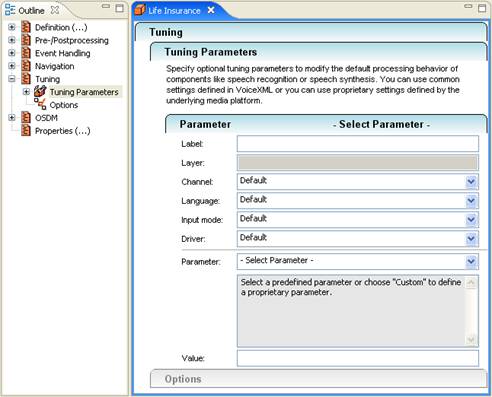
3. In the Project Documentation window, select Dialog flow and object overview and click Next.

4. In the Dialog Flow and Object Overview window, specify the object details to be included in your dialog flow and your object overview.
In the example documentation LifeInsuranceProjectDocumentationEN.pdf the settings as shown in the screen above have been selected.
5. Click Create to start creating the documentation.
A PDF document will be generated containing a cover page (if selected), the dialog flow and the object overview according to your selection, and a statistics page (see examples below).
See the file LifeInsuranceProjectDocumentationEN.pdf in the documentation folder of your VoiceObjects installation for the complete example documentation.
For a detailed description of the project documentation functionality see Create Project Documentation in Chapter 7 – Basic Commands in the Desktop for Web Guide.
Examples
Cover page
The cover page lists general information about the name, the short description, the creation date and the owner for both project and project version.
Dialog flow
The dialog flow shows the objectsof the Life Insurance application in the same order as they appear in the Dialog Designer. Within the dialog flow you will find hyperlinks to jump from an object to its object definition in the object overview, if created. Available hyperlinks are indicated by blue object names.

Object overview
The object overview lists all object definitions that are referenced within the Life Insurance Module object. Within the object overview you will find hyperlinks to jump from an object to its child objects. Available hyperlinks are indicated by blue object names.
Object statistics
The statistics page is automatically generated when an object overview is created. It lists all object types and displays the total number of objects per type. The statistics page also serves as a table of contents. By clicking an object type you arrive at the corresponding section in the PDF file. Note that a hyperlink for an object type is only available if at least one object of this type exists in your application.