Lesson 3 – Creating Output
Objectives
Lesson 3 introduces the general concept of objects, which is the basic underlying concept of VoiceObjects. It explains how to create output by using an Output object.
After completing this lesson you will know
· what is meant by objects in the VoiceObjects context,
· what object editors look like,
· how to create an Output object.
Objects
Objects are the core components from which applications are built within VoiceObjects. Based on an object-oriented approach the VoiceObjects platform contains different object types which each provide specific functionality and properties.
Each individual object has a particular configuration and can be used wherever this specific kind of behavior is needed. The object is created just once, but can be used multiple times within different contexts. This reusability applies to single objects as well as to complex object sequences. This reduces development and maintenance efforts significantly (see also Reusability of Objects in Chapter 1 – Application Design – The Modular Concept in the Design Guide).
VoiceObjects distinguishes between so-called dialog objects and configuration objects.
Dialog objects are used to build applications. VoiceObjects provides a lot of different types – grouped into seven categories. The Object Types Overview in the Object Reference contains an overview of all dialog object types currently available. For details how to configure a specific object see the respective section in the Object Reference.
Configuration objects are used to configure the VoiceObjects platform. User objects, which you have already learned to know in Lesson 1 (see Adding a User) and projects, which you created in Lesson 2 (see Creating a Project), belong to the configuration objects. The other two are the Server object and the Service object, which you will learn to know in Lesson 4 – Deploying and Testing an Application.
Object Editors
Objects are created and modified in so-called object editors. Object editors share certain features but also have features that are particular to each object type. Depending on the object type you want to create or edit, the corresponding object editor opens up.
As an example, an Input editor – the object editor for an Input object – is shown below:
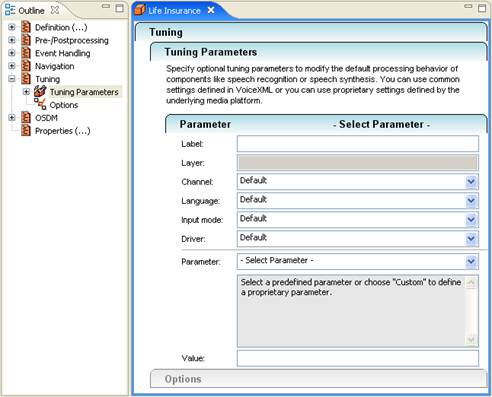
At the top, each object editor contains a title bar displaying the name of the object (after saving it) and the type of the object editor and, below the title bar, a toolbar containing buttons for the most frequently used commands when creating or editing objects.
Moreover, each object editor contains a Name field in the upper left corner to enter a unique name for the object. Entering a name is mandatory, and an object cannot be saved without a name.
Depending on the object type, two or more tabs are available in the corresponding object editor, which contain all definitions of the object. Within one tab one or more sections, represented by boxes, are available, which contain all attributes and parameters defining an object.
For details on object editors refer to Chapter 6 – Object Editors in the Desktop for Web Guide.
Output Objects
Any output presented to a caller is represented within VoiceObjects by an Output object. Thus, Output objects are one of the most frequently used objects.
The Output object belongs to the object category Components. Objects grouped into the Components category are higher-level objects, which provide fairly complex dialog processing capabilities.
Output objects can either be autonomous or embedded as part of other objects such as Input, Menu, or Confirmation objects.
In the voice and video channel, outputs may contain text that is read out through a text-to-speech engine, or prerecorded audio or video files, possibly containing various dynamic content as well as Silence objects.
For a detailed description of the complete functionalities of the Output object see Output in the Object Reference.
In the following we will create a simple autonomous Output object that just plays back a simple welcome message to the caller.
Creating an Output Object
1. To create an Output object select Output from the New menu or click the Output icon  on the toolbar. An empty Output editor will open up.
2. In the Output editor, enter Welcome as the name for the new Output object in the Name field at the top of the editor window.
On the Definition tab, which is the main area for configuring objects in all object editors, you see one section: the Output section. The Output section contains an empty Output item.
3. Type a welcome message (e.g. Welcome to the Prime Life Insurance service!) in the text field of the Output item. This text will be read to the caller by a speech synthesis system when running the application.
4. Leave all other values as default for now.
The Output section looks like this now:

i8Note: An Output object may contain any number of individual Output items. To add an item, click the Add button on the toolbar of the Output section.
As you will see during the course of this Tutorial there are several objects that may contain multiple items (e.g. Grammar, Hyperlink, Input, Layer).
5. On the Output Editor toolbar, click Save and Close.
In the Object Browser, you will now see a Components folder containing an Output folder, containing your Welcome Output object.
For an overview on the function of all fields within the Output section refer to Output in the Object Reference.
What Comes Next
Next, you will learn how to deploy your application – comprised so far of a single Output object – so that you can call it.