Lesson 10 – Handling Dynamic Data
Objectives
Lesson 10 briefly explains how to handle dynamic data within VoiceObjects and how to use the Script object in order to return a value on the basis of input collected from the caller.
After completing this lesson you will know
· which objects to use to handle dynamic data,
· how to specify embedded script code in a Script object,
· how to pass parameters into the Script object and return a value.
About Dynamic Data
Typically, applications need to manipulate data, either coming from the caller or from a back-end system. VoiceObjects provides several objects to store different types of data and to perform operations on these data.
The most common object to be used to handle information during a call is the Variable object that has already been introduced during the course of this Tutorial. The Variable object is a single non-typed value, which may contain names, numbers, Boolean values, etc. It can be used within almost any other object to control certain object properties or processing conditions dynamically at call time. For detailed information on the Variable object see Variable in the Object Reference.
To store a table of data, the Collection object can be used (see Collection in the Object Reference).
Data can be manipulated either within VoiceObjects or externally, e.g. by connecting to back-end systems such as databases or CRM (Customer Relationship Management) systems. Internal processing is done via Expression or Script objects, while external processing uses Connector objects.
Expression objects provide functions to access variable or collection values, and to manipulate, set or transform them. Examples are standard numerical operations, or string operations to get the length of a string or to replace substrings. For a complete functional description refer to Expression in the Object Reference.
More complex operations can be realized using the Script object as will be done in the case of the Life insurance application (see Using the Script Object below).
The Connector object provides the framework for back-end connectivity. It enables the execution of external programs, which can either be Java code or arbitrary server-side scripts executed by means of HTTP requests. For detailed information refer Connector in the Object Reference.
For further information on handling data refer to Chapter 4 – How to Handle Data in the Design Guide.
Using the Script Object
The Script object allows the specification of server-side scripting language code to control any kind of business logic within the dialog flow. The script code can either be embedded within the object definition itself, or it can be referenced as an external file source.
Any number of parameters from the dialog context can be passed into the Script object. These parameters can be a mix of constants, Variable, Expression, Collection, Layer, or other Script objects.
A Script object can provide a return value, and thus act as a replacement for an Expression object. The return value of the Script object is defined by the value of the last statement that is evaluated within the JavaScript code.
The Script object belongs to the category Resources.
For further details on the usage and functionality of the Script object refer to Script in the Object Reference.
In the case of the Life Insurance application you will use the Script object to calculate the insurance fee for the caller based on the parameters gender and age that have previously been collected and stored in variables.
Creating a Script Object
To add a Script object to the Life Insurance application, do one the following:
Open the Life Insurance Module object by double-clicking it in the Object Browser. In the Module editor that opens up add a new row to the Object Sequence section, and from the context menu select New and then Script.
OR
Display the dialog of the Life Insurance Module object in the Dialog Designer, right-click the embedded sequence and from the context menu that comes up select Append, then New and then Script.
An empty Script editor will open up.
In the Script editor, enter Compute life insurance fee as the name for the new Script object.
Specify the script code
In the Script Resource section, define the code to be processed within the Script object. In the case of the Life Insurance application provide the following code as an embedded definition:
if ((gender == "male") || (gender == "1"))
{fee = 35;}
else
{fee = 27;}
if (age> 30)
{fee = fee + (age - 30);}
This code will return the life insurance fee based on gender and age.

Define the parameter set
In the Parameter Set section, provide the parameters that are required to exchange processing information with the script code.
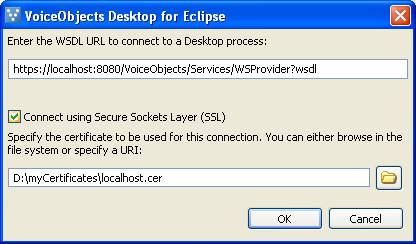
1. Click the Context Menu button  and browse for the Caller gender Variable object to add it to the Parameter field. Enter gender in the Alias field to define the name under which the parameter is accessible within the script code.
2. Add a second parameter to the Parameter Set section by clicking the Add button on its toolbar. Browse for the Caller age Variable object to add it into the Parameter field, and enter age into the Alias field.
3. Add a third parameter to the Parameter Set section to specify the variable that will return the computed fee. Use the Context Menu button to create a new Variable object called Life insurance fee. In the Alias field, enter fee.
Your Parameter Set section looks like this now:
Leave all other values as default and click Save and Close on the toolbar of the Script editor.
In the Object Browser you will now find a Resources folder, containing a Script folder, which contains your Compute life insurance fee Script object.
Playing the Result to the Caller
Next, add a new Output object to the embedded sequence of the Life Insurance Module object to play back the result value of the processing of the Compute life insurance fee Script object to the caller.
1. In the Output editor, enter Play life insurance fee as the name for the new Output object.
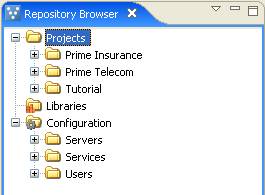
2. Enter the following prompt into the text field and add the relevant Variable object where appropriate:
The monthly premium for a [V:Caller age] year old [V:Caller gender] is [V:Life insurance fee] dollars.
The Play life insurance fee Output object looks like this now:
The dialog flow for the Life Insurance Module object now looks like this:

Dialog Flow 9
You have now added two more objects to the dialog flow, which do the following:
The Compute life insurance fee Script object calculates the monthly fee for the caller based on the gender and age provided and the Play life insurance fee Output object plays back the result to the caller.
After redeploying your service in the Control Center, call it and test the application behavior.
The following dialog flow shows an example dialog for the Prime Life Insurance service you have created so far:
|
Object – Caller |
Dialog Flow |
|
|
Good morning and welcome to the Prime Life Insurance service! |
|
|
To help me calculate what your monthly premium would be for life insurance, please say if you are male or female. |
|
|
Female. |
|
|
Now please say your age. |
|
|
Twenty-eight. |
|
|
Ok, I have recognized your gender as female and your age as twenty-eight. Is that correct? |
|
|
Yes. |
|
|
The monthly premium for a twenty-eight year old female is 27 dollars. |
|
|
Thanks for calling. Goodbye! |



What Comes Next
Next, you will learn how to influence the dialog behavior by the use of conditions.